

Most advances in modern programming languages, are striving towards making code more human readable. Some people call these features syntactic sugar, because often it doesn’t really change the way the runtime internally handles it.
One such feature in JavaScript is async await. Lets first look at the simple diagram, comparing synchronous vs asynchronous calls. Courtesy of Marijn Haverbeke’s amazing book Eloquent JavaScript.
In below diagram, thick blue line is the program running usually and the thin red line represents time spent waiting. As you can see, with asynchronous mode, there is no time spent waiting. hence the primary thread is free to do other things, remains ready for interactivity. It picks up the processing on a future callback e.g. an API call returning a response.
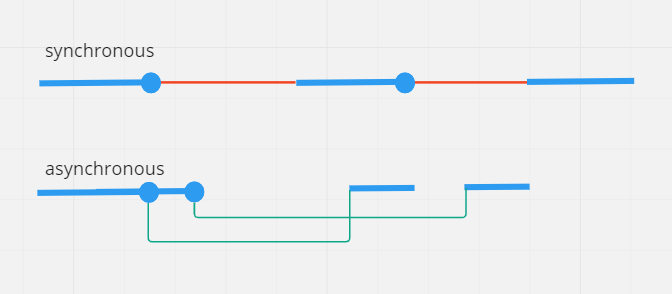
Analogy, lets say you drop your friend to do some shopping. He is going to call you when he is done. If you wait outside doing nothing, waiting for his call, that is stupid(synchronous). If you go do some of your other chores, and when he calls, you go back to pick him up, that is smart(asynchronous).
So, asynchronous is good, how to do it in JS, two prominent ways are promises and async await
Enough english and images, lets see the code. Where the same API call is done both ways. API returns a response and then its converted to JSON, both return a promise.
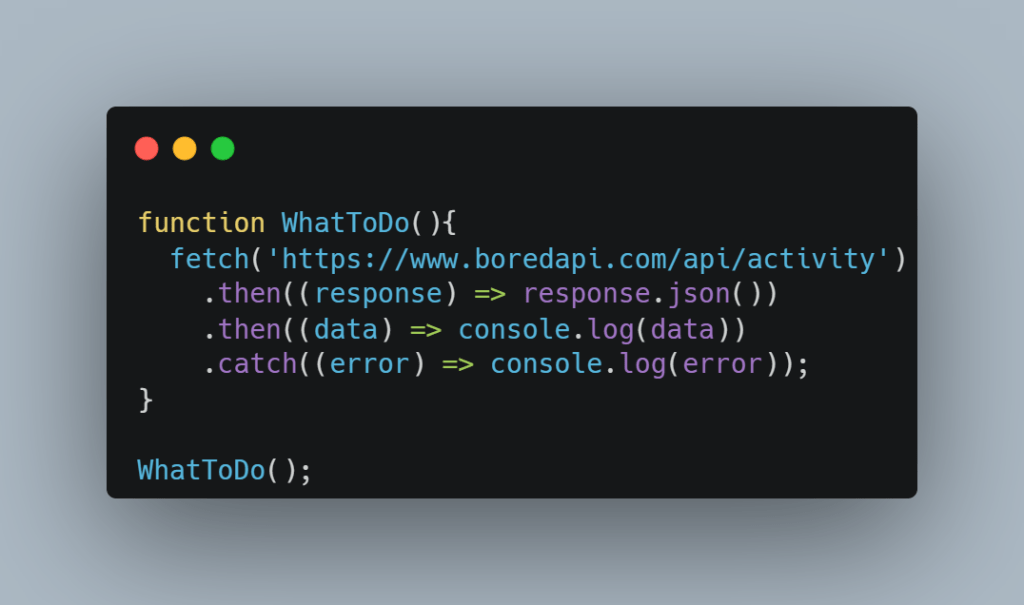
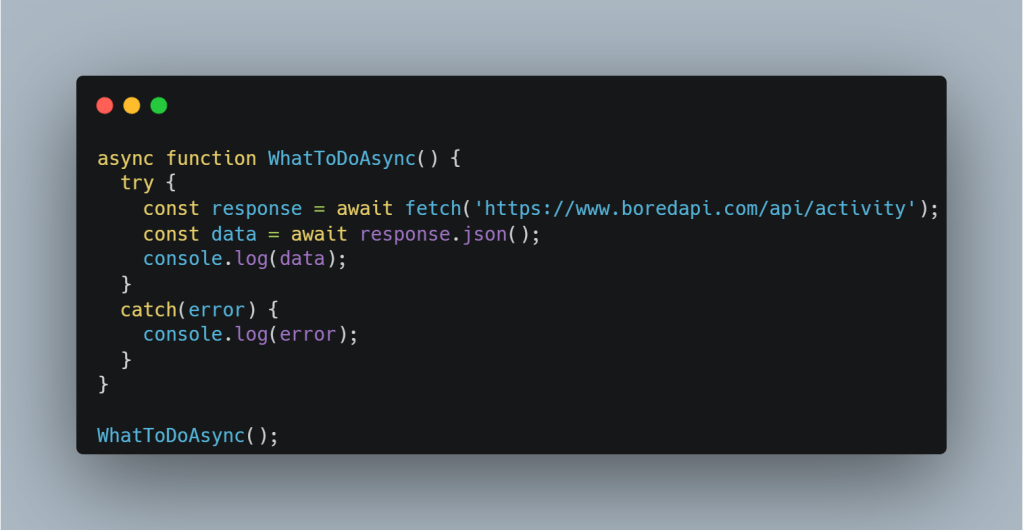
In case you are wondering that’s a real API, and you can see these examples in action at this jsfiddle
You might say, its not making any difference to number of lines of code, but the point is readability. In this contrived example may not seem much but in many real world applications, promises are chained at much deeper level causing readability hell.
Now, go fix some bugs!








 TechSpark