
This is tested with Kony Enterprise Studio 7.0.1 and TFS Server 2012.
Kony studio is based on Eclipse, so, everything one would do to achieve this for Eclipse should apply to Kony studio as well.
First step is to get the TFS plugin installed for Kony, and like mentioned, this is no different from how it’s done for Eclipse. Simply follow this link http://bit.ly/konytfs to install it.
Once done, open your project go to menu Window>>Show View>>Project Explorer you will see below window
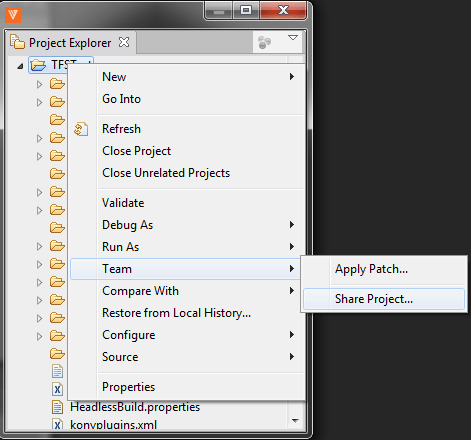
Right click on root folder Team>>Share Project link and follow the wizard…
- Plug-in selector

- TFS URL
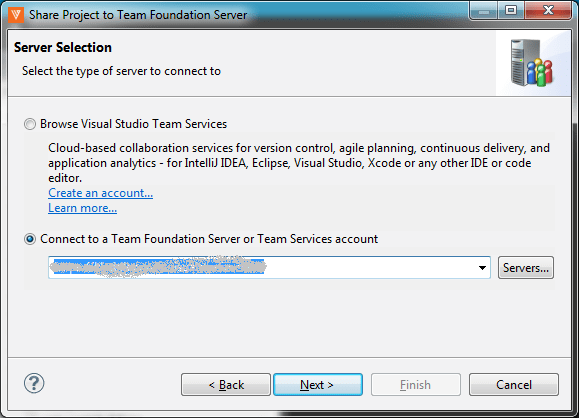
- Server selection
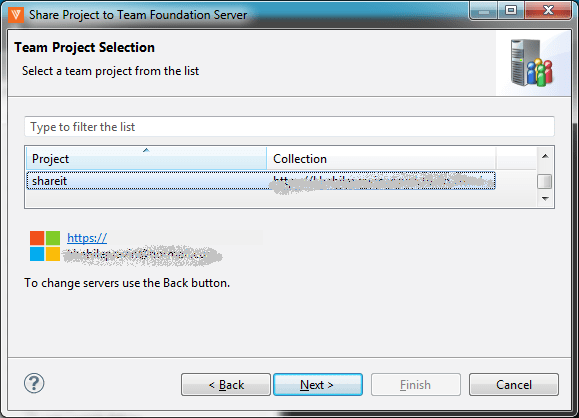
- Server project location

If this is the first time you are adding a project, it might show you an additional screen to create workspace. I suggest you do create a separate workspace for each of your projects, it makes life easier to track pending changes.
At the end of it, you should be all set to do check-in and check-out into TFS with Kony Studio.
Use comments to point out any mistakes or suggest enhancements…
 TechSpark